
Templates
This page provides a step-by-step guide to setting up and configuring templates in ParOne. Templates enable you to quickly tailor how your content.
Adding Templates
Section titled “Adding Templates”Click on “Templates” in the sidebar, and click “Add Template” in top right part of the screen.
Adding Content Info Templates
Section titled “Adding Content Info Templates”-
Select Content Info.
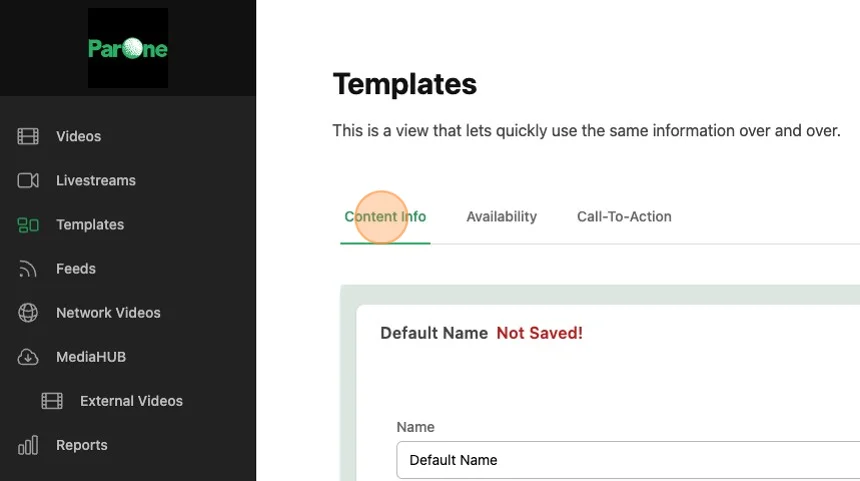
-
Click the button to Add a New Content Info Template.
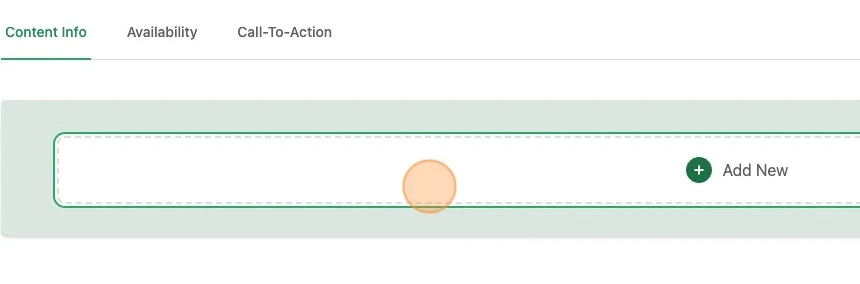
-
Give this template a name. This will be used in other parts of ParOne.
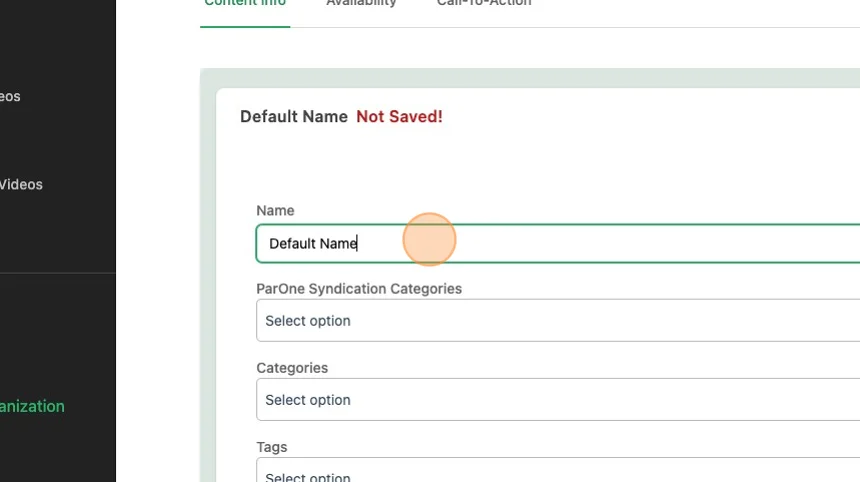
-
Fill in the information as if you were entering Content Info for a video.
Adding Availability Templates
Section titled “Adding Availability Templates”-
Select Availability.
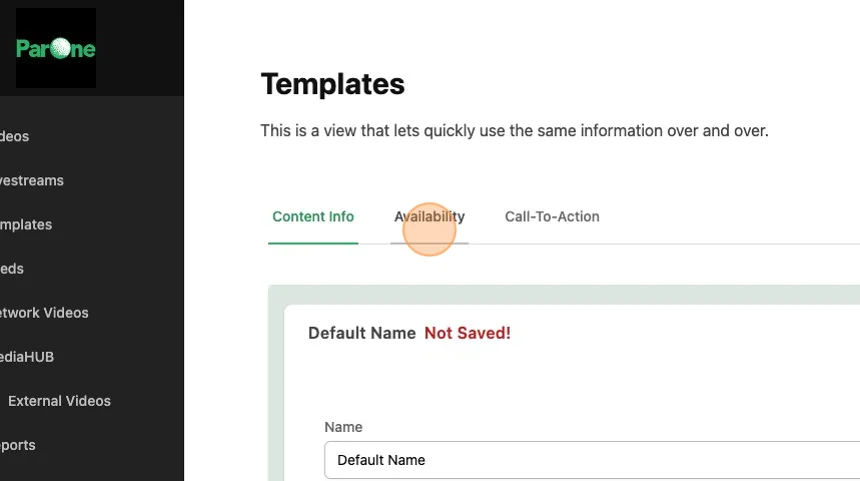
-
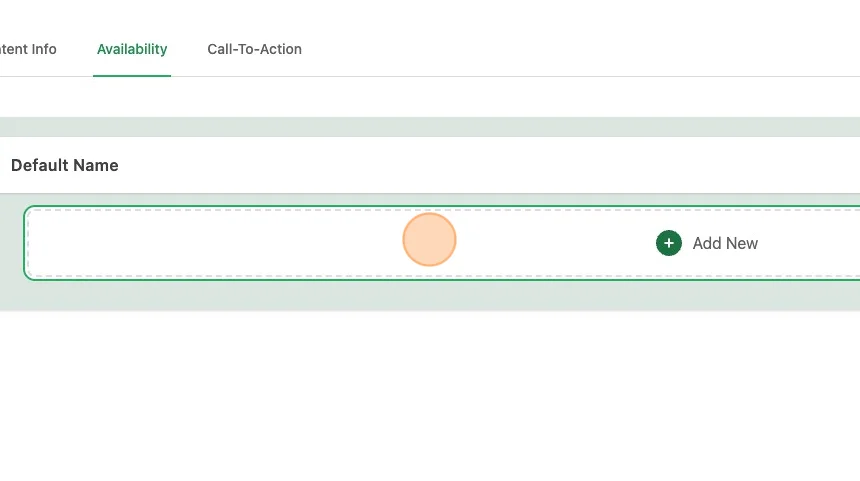
Click the button to Add a New Availability Template.
-
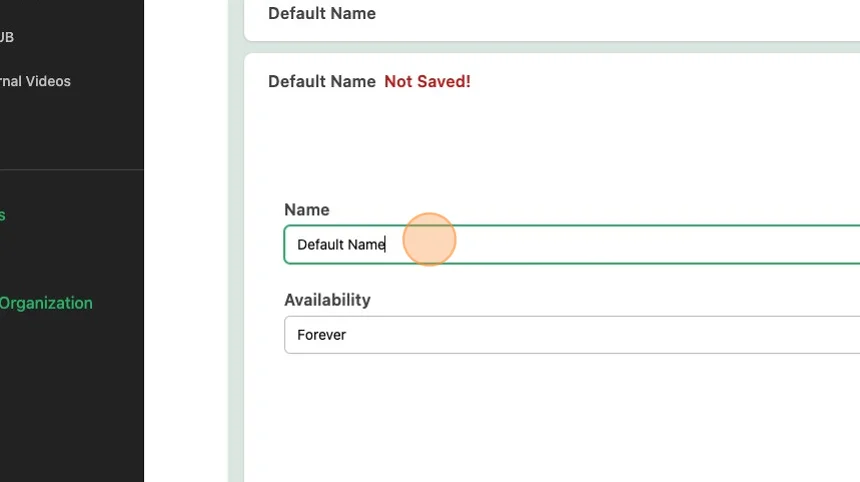
Give this template a name. This will be used in other parts of ParOne.
-
Fill in the information as if you were entering Availability Info for a video.
Adding E-Commerce Templates Requires E-Commerce
Section titled “Adding E-Commerce Templates ”-
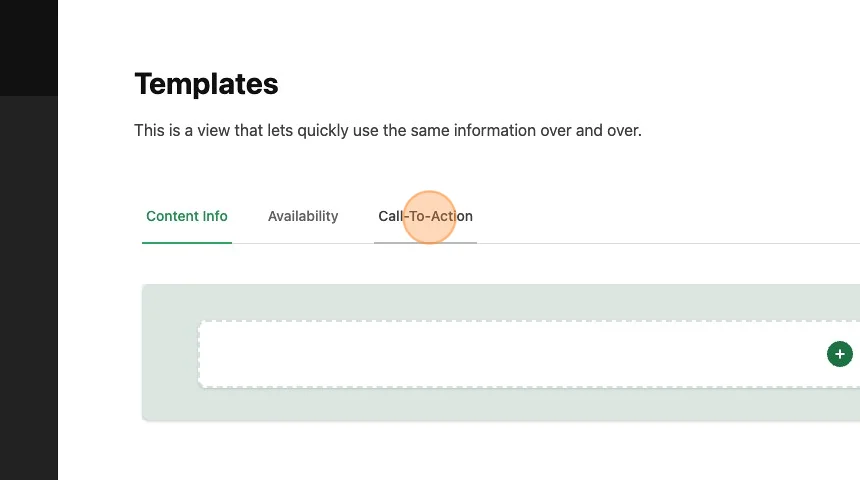
Select Call-To-Action.
-
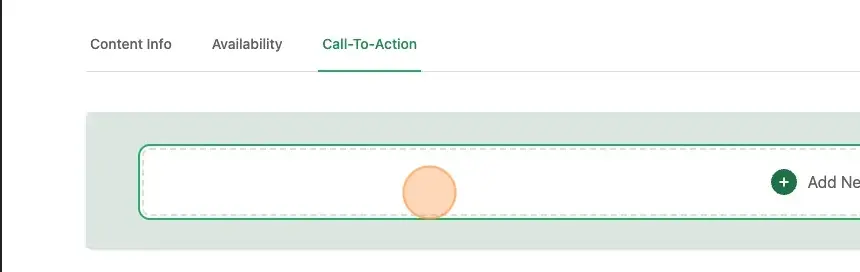
Click the button to Add a New Call-To-Action Template.
-
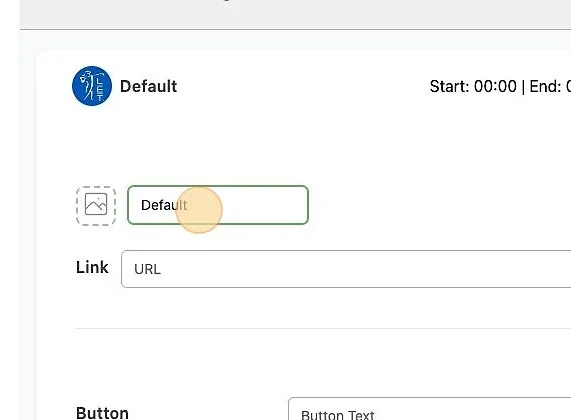
Give this template a name. This will be used in other parts of ParOne.
-
Fill in the information as if you were entering Call-To-Action for a video.
Adding Templates to Videos
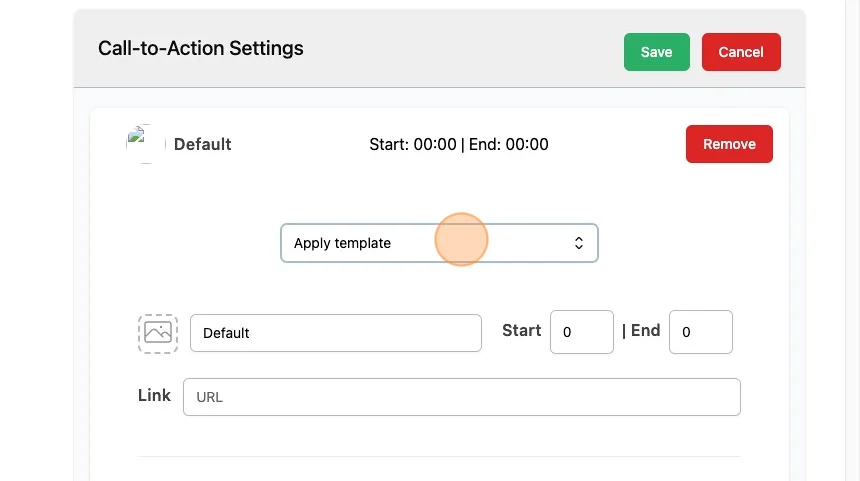
Section titled “Adding Templates to Videos”Whenever you have an available template to be used inside of a video, you will see Apply Template. Selecting a template here will overwrite all information.
 .
.
Setting Organizational Defaults
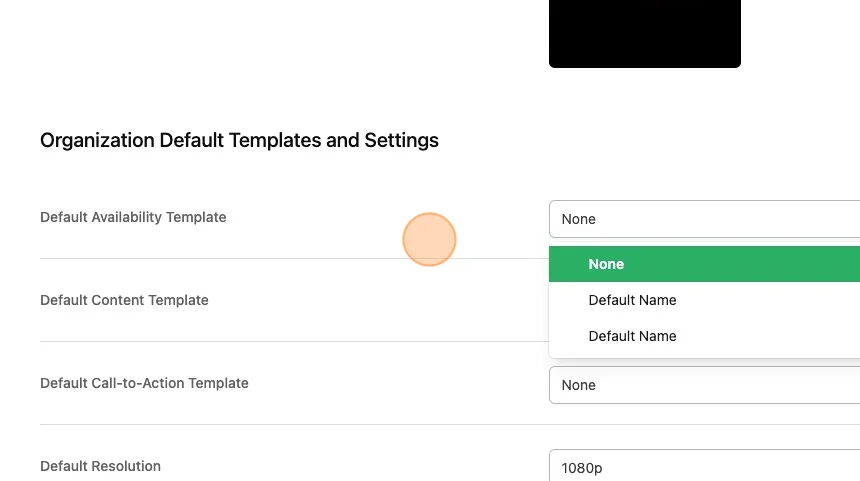
Section titled “Setting Organizational Defaults”You can set the default template to be applied automatically on all new videos by going to Settings -> Organizations and modifying the templates.
 .
.