ParOne Video Player
The steps below will integrate ParOne into your existing stack in minutes.
-
Add
<script>TagInclude the ParOne SDK script tag in your website’s
<head>section.<head> <script src="https://sdk.parone.io/parone.min.js"></script> </head> -
Insert
<parone>TagInsert the ParOne video player tag into your site’s
<body>section. ReplaceYOUR_FEED_IDwith your FeedID, and theCONTENT_KEYwith a content-key from feed.<body> <parone-video-block content-key="CONTENT_KEY" feed="YOUR_FEED_ID"> </body>
-
Instantiate a WkWebView object and load our script tag and the single Video Block.
Replace
YOUR_FEED_IDwith your Feed ID, and theCONTENT_KEYwith a content-key from the JSON or RSS feed.YOUR_URL_HEREshould be the same URL for your domain associated with your Ad server to ensure ads play correctly.class ViewController: UIViewController, WKUIDelegate { var webView: WKWebView! override func loadView() { let webConfiguration = WKWebViewConfiguration() webConfiguration.allowsAirPlayForMediaPlayback = true webConfiguration.mediaTypesRequiringUserActionForPlayback = .audio webConfiguration.allowsInlineMediaPlayback = true webConfiguration.allowsPictureInPictureMediaPlayback = true webView = WKWebView(frame: .zero, configuration: webConfiguration) webView.uiDelegate = self view = webView } override func viewDidLoad() { super.viewDidLoad() webView.loadHTMLString(" <html> <head> <script src='https://sdk.parone.io/parone.min.js'></script> <meta name='viewport' content='width=device-width, initial-scale=1.0, maximum-scale=1.0'></meta> </head> <body>This is a video test<br> <parone-video-block feed='YOUR_FEED_ID' content-key='CONTENT_KEY'> </parone-video-block> </html>", baseURL: URL(string: "YOUR_URL_HERE")) } } -
Additional Settings
Section titled “Additional Settings”
Android
Section titled “Android”-
use a WebView and load our
<script>and the desired<HTML>tags.Below is an example fragment.
private const val arg_id = "id" private const val arg_feed = "feed" class SingleBlockFragment : Fragment() { private var contentKey: String = "" private var feed: String = "Unknown" override fun onCreate(savedInstanceState: Bundle?) { super.onCreate(savedInstanceState) arguments?.let { contentKey = it.getInt(arg_id) feed = it.getString(arg_feed) ?: "Unknown" } } override fun onViewCreated(view: View, savedInstanceState: Bundle?) { val html = """ <script src='parone.min.js'></script> <parone-video-block content-key='$this.contentKey' feed='$this.feed'/> """ val webView = view.findViewById<WebView>(R.id.webview).apply { settings.javaScriptEnabled = true settings.domStorageEnabled = true webChromeClient = WebChromeClient() webViewClient = WebViewClient() } webView.loadDataWithBaseURL( "https://sdk.parone.io", html, "text/html; charset=UTF-8", "UTF-8", "" ) } override fun onCreateView( inflater: LayoutInflater, container: ViewGroup?, savedInstanceState: Bundle? ): View? { return inflater.inflate(R.layout.fragment_single_block, container, false) } companion object { @JvmStatic fun newInstance(id: Int = 0, feed: String? = null) = SingleBlockFragment().apply { arguments = Bundle().apply { putInt(arg_id, id) putString(arg_feed, feed) } } } } -
Change Orientation
Section titled “Change Orientation”To support changing orientation, add the following to your
AndroidManifest.xmlin theactivitytag:android:configChanges="orientation|keyboardHidden|screenSize" -
Allowing Fullscreen
Section titled “Allowing Fullscreen”To support fullscreen, see example code below.
Fragment layout:
<?xml version="1.0" encoding="utf-8"?>
<FrameLayout xmlns:android="http://schemas.android.com/apk/res/android"
    xmlns:tools="http://schemas.android.com/tools"
    android:layout_width="match_parent"
    android:layout_height="match_parent">
    <FrameLayout xmlns:android="http://schemas.android.com/apk/res/android"
        android:id="@+id/mainview"
        xmlns:tools="http://schemas.android.com/tools"
        android:layout_width="match_parent"
        android:layout_height="match_parent">
        <WebView
            android:id="@+id/webview"
            android:layout_width="wrap_content"
            android:layout_height="wrap_content">

        </WebView>
    </FrameLayout>
    <FrameLayout
    android:id="@+id/targetview"
    android:layout_width="match_parent"
    android:layout_height="match_parent"
    android:visibility="gone">
    </FrameLayout>
</FrameLayout>
Extend the above Kotlin example like so:
private const val arg_id = "id"
private const val arg_feed = "feed"

class SingleBlockFragment : Fragment() {
  private var contentKey: String = ""
  private var feed: String = "Unknown"
  private var targetView: FrameLayout? = null
  private var contentView: FrameLayout? = null
  private var customView: View? = null

  override fun onCreate(savedInstanceState: Bundle?) {
    super.onCreate(savedInstanceState)
    arguments?.let {
      contentKey = it.getInt(arg_id)
      feed = it.getString(arg_feed) ?: "Unknown"
    }
  }

  override fun onViewCreated(view: View, savedInstanceState: Bundle?) {
    contentView = view.findViewById(R.id.mainview);
    targetView = view.findViewById(R.id.targetview);
    val html = """
        <script src='parone.min.js'></script>
        <parone-video-block content-key='$this.contentKey' feed='$this.feed'/>
    """
    val webView = view.findViewById<WebView>(R.id.webview).apply {
      settings.javaScriptEnabled = true
      settings.domStorageEnabled = true
      webChromeClient = object: WebChromeClient() {
        override fun onShowCustomView(view: View, callback: CustomViewCallback) {
            targetView?.addView(view)
            customView = view
            contentView?.setVisibility(View.GONE)
            targetView?.setVisibility(View.VISIBLE)
            targetView?.bringToFront()
        }

        override fun onHideCustomView() {
          customView?.setVisibility(View.GONE)
          targetView?.removeView(customView)
          customView = null
          targetView?.setVisibility(View.GONE)
          contentView?.setVisibility(View.VISIBLE)
        }
      }
      webViewClient = WebViewClient()
    }
    webView.loadDataWithBaseURL(
      "https://sdk.parone.io", html,
      "text/html; charset=UTF-8",
      "UTF-8", ""
    )
  }

  override fun onCreateView(
    inflater: LayoutInflater, container: ViewGroup?,
    savedInstanceState: Bundle?
  ): View? {
    return inflater.inflate(R.layout.fragment_single_block, container, false)
  }

  companion object {
    @JvmStatic
    fun newInstance(id: Int = 0, feed: String? = null) =
      SingleBlockFragment().apply {
        arguments = Bundle().apply {
            putInt(arg_id, id)
            putString(arg_feed, feed)
        }
      }
  }
}
Wordpress
Section titled “Wordpress”-
Install the zip file from the “Install Plugin” page of your WordPress admin console.
Download the Latest ParOne Wordpress PluginDownload and install our WordPress plugin from the official Wordpress.org Website. -
Insert
<parone>TagInsert the ParOne video player tag into your site’s
<body>section. ReplaceYOUR_FEED_IDwith your FeedID, and theCONTENT_KEYwith a content-key from feed.<body> <parone-video-block content-key="CONTENT_KEY" feed="YOUR_FEED_ID"> </body> -
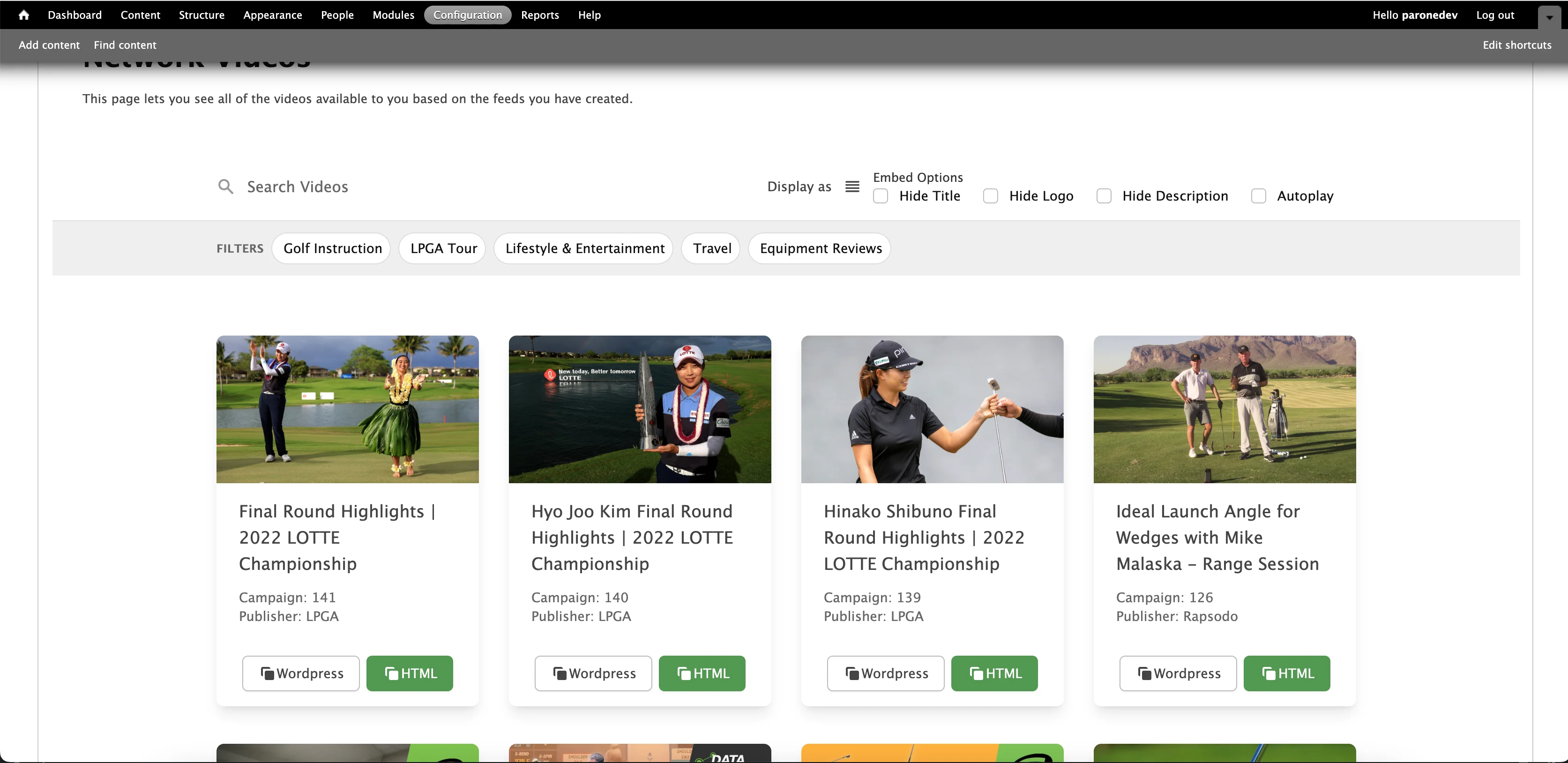
Go to WordPress admin and navigate to ParOne Feeds -> Video Library.
Enter your Organization Key from Settings -> Organization
Click “Get Feeds”