ParOne YouTube Importer
This page provides detailed instructions for installing, configuring, and using the ParOne Chrome Extension for importing YouTube videos into the ParOne CMS.
Find and install the ParOne Chrome YouTube extension
Section titled “Find and install the ParOne Chrome YouTube extension”First, start Google Chrome and go to the Chrome Extension Store with this URL
https://chromewebstore.google.com/category/extensions
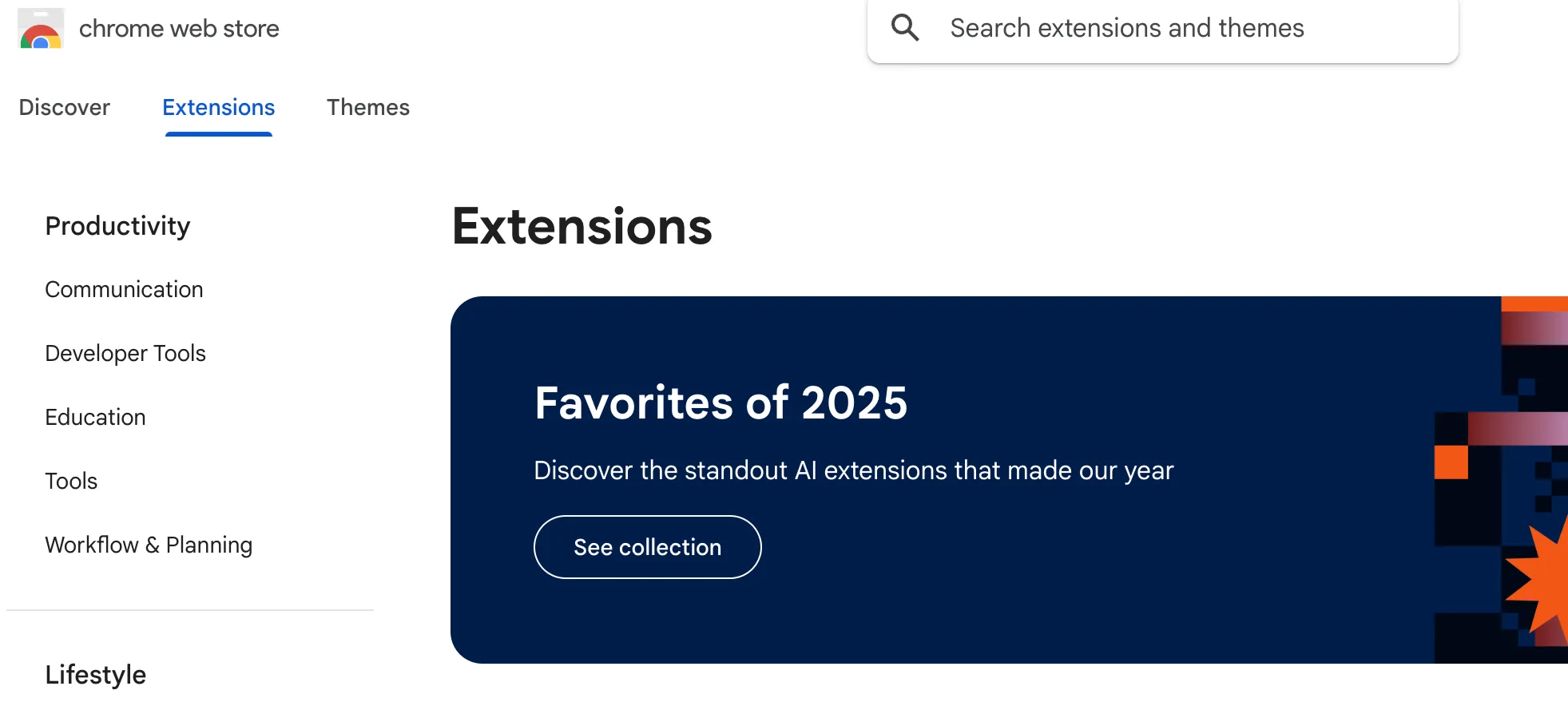
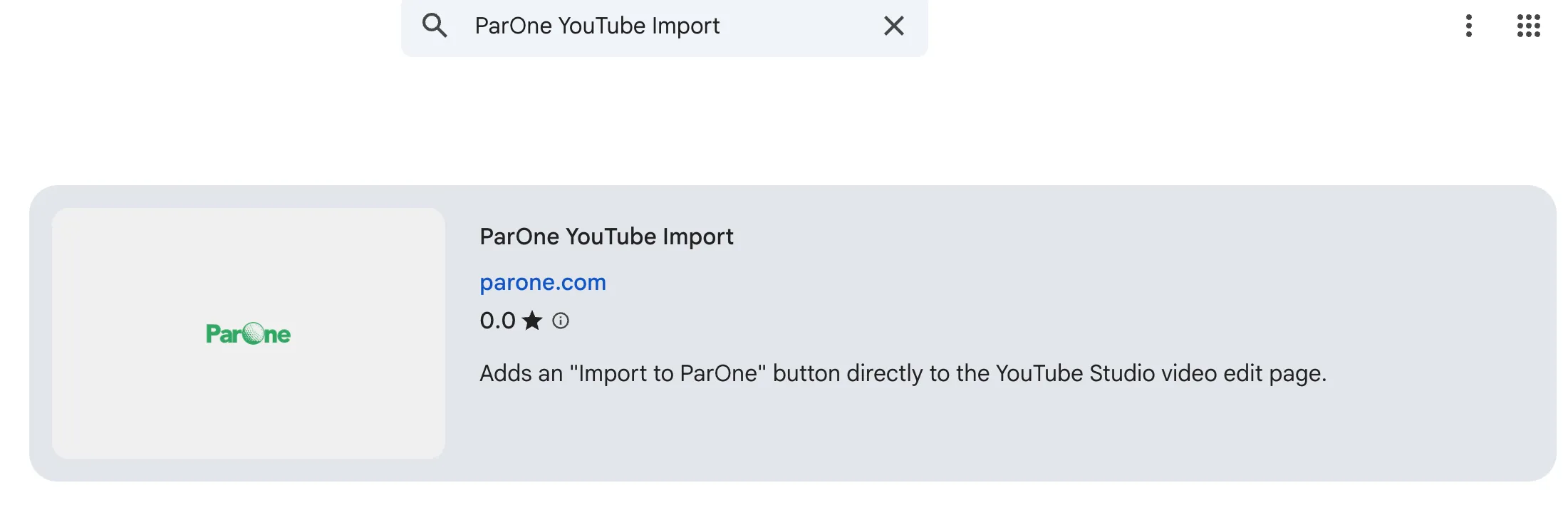
Then search for “ParOne,” or use the

You should see the ParOne YouTube Importer, which should look like this:
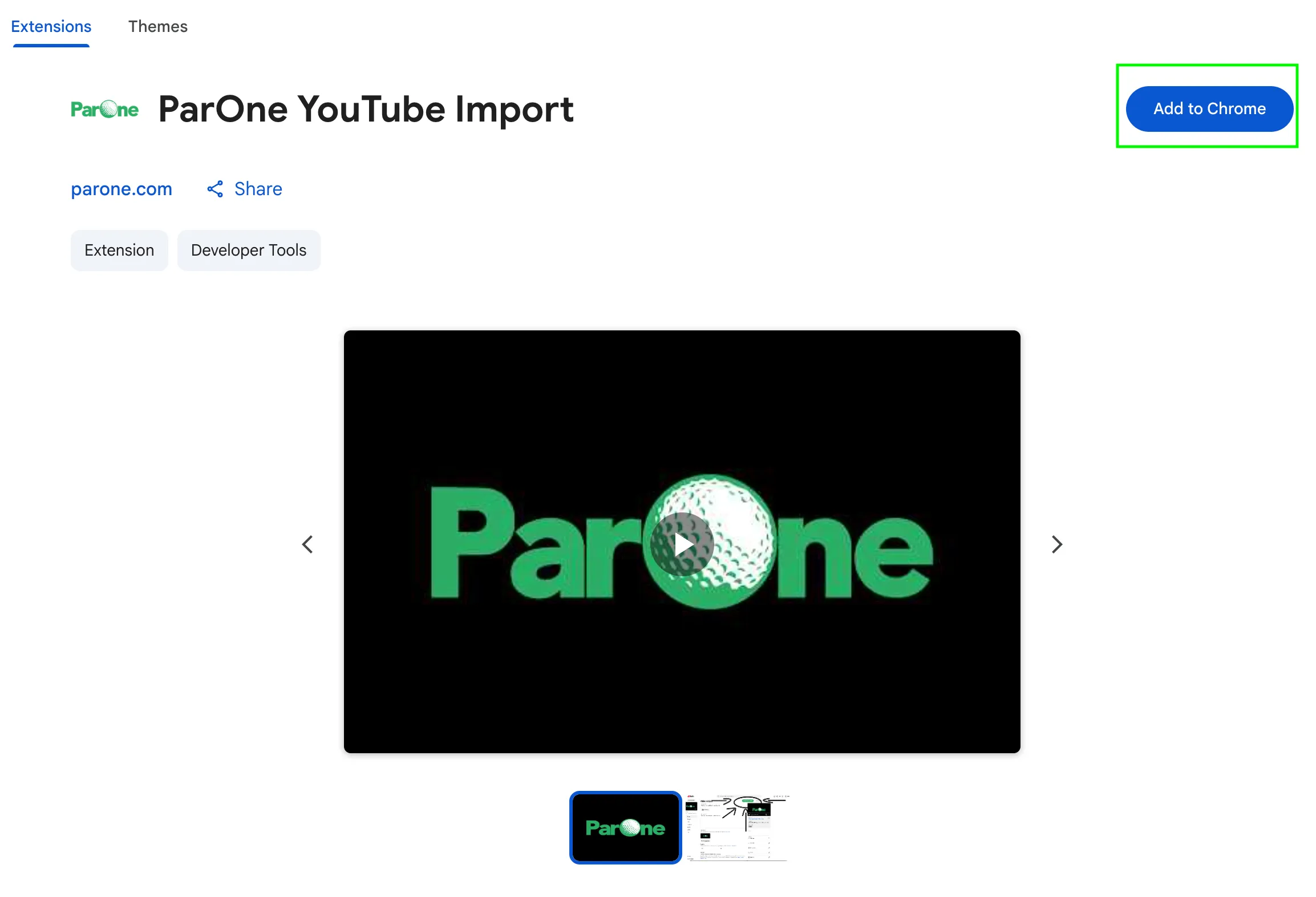
Click on it, then click “Add to Chrome.”
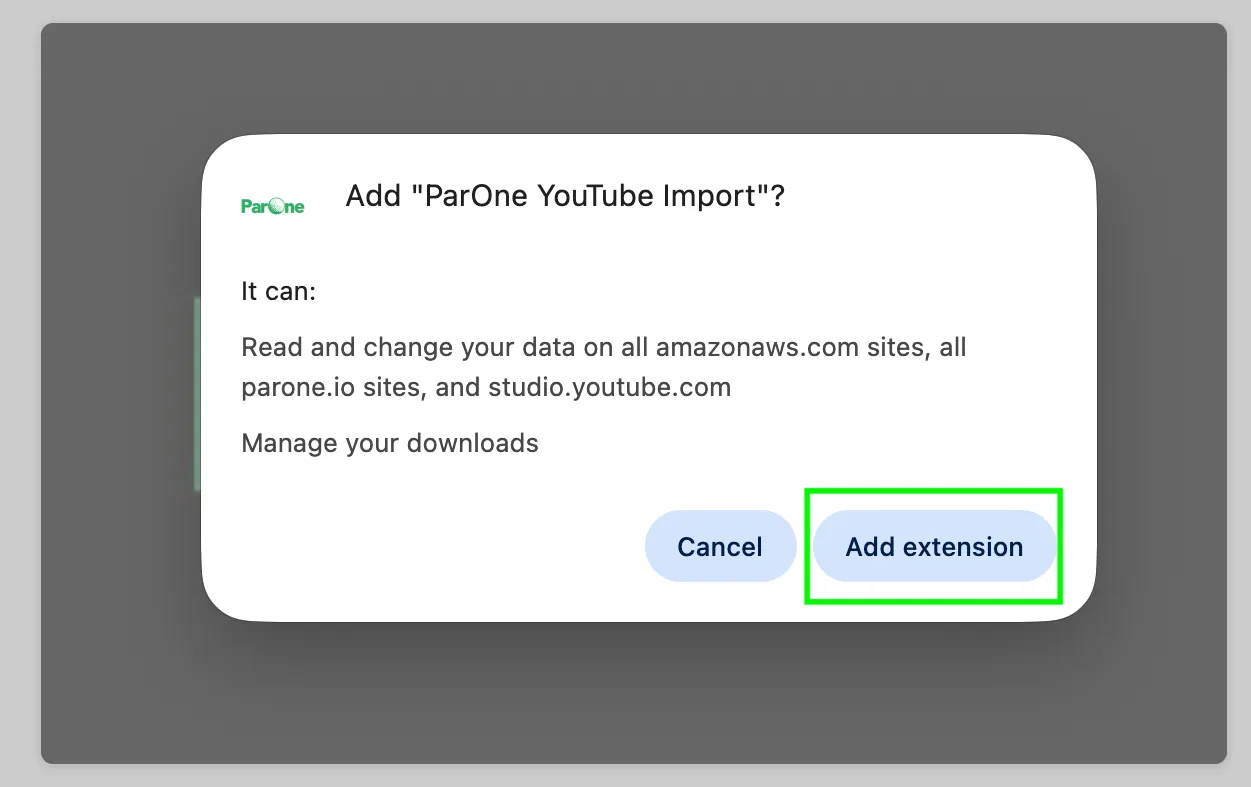
Chrome will prompt you about adding the extension. Click “Add extension”
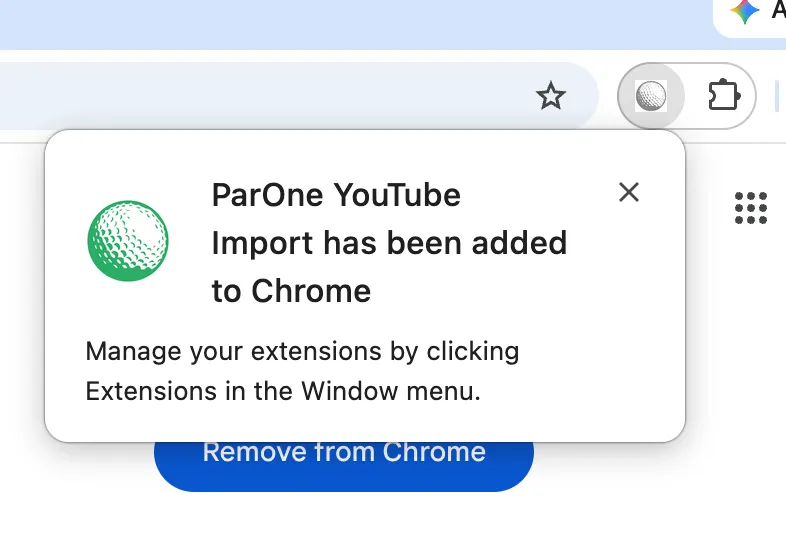
After the extension is installed you’ll see this:
Configuring the ParOne Youtube Import extension
Section titled “Configuring the ParOne Youtube Import extension”Once the extension is installed, you’ll need to configure your API and Secret keys and enable file access. Do the following:
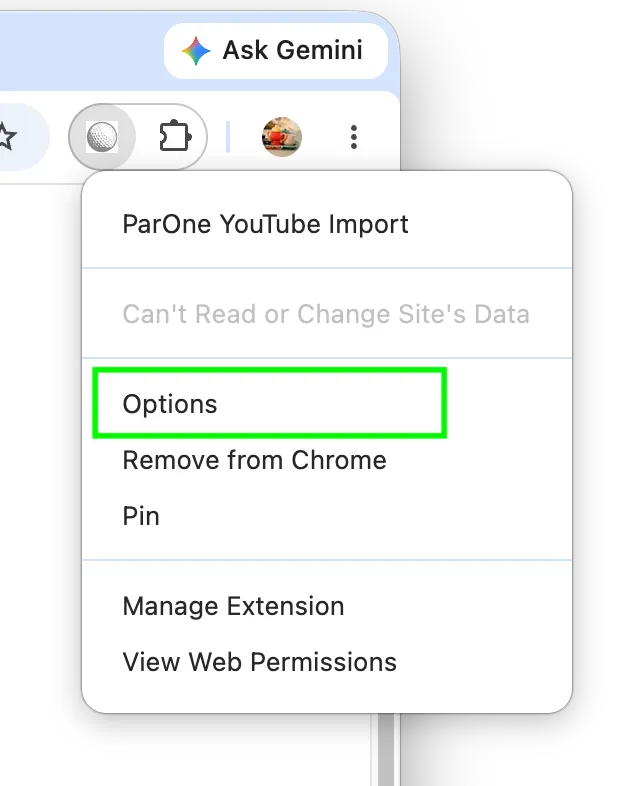
Click on the ParOne Icon, then select “Options”
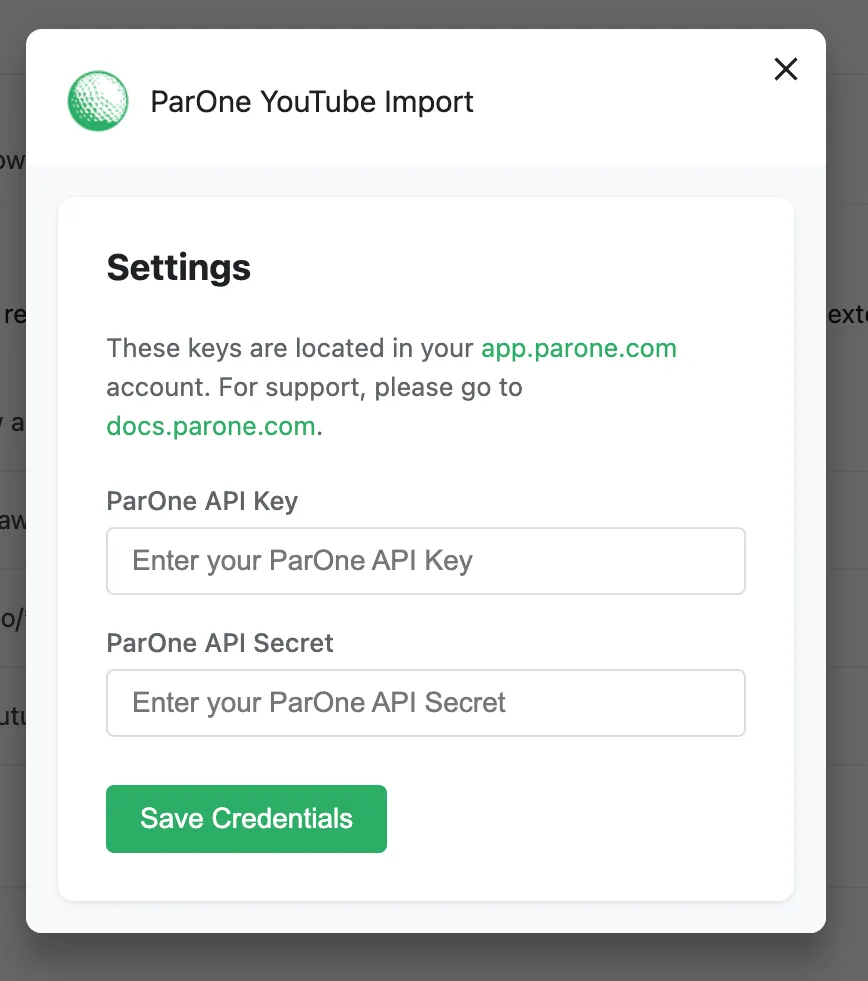
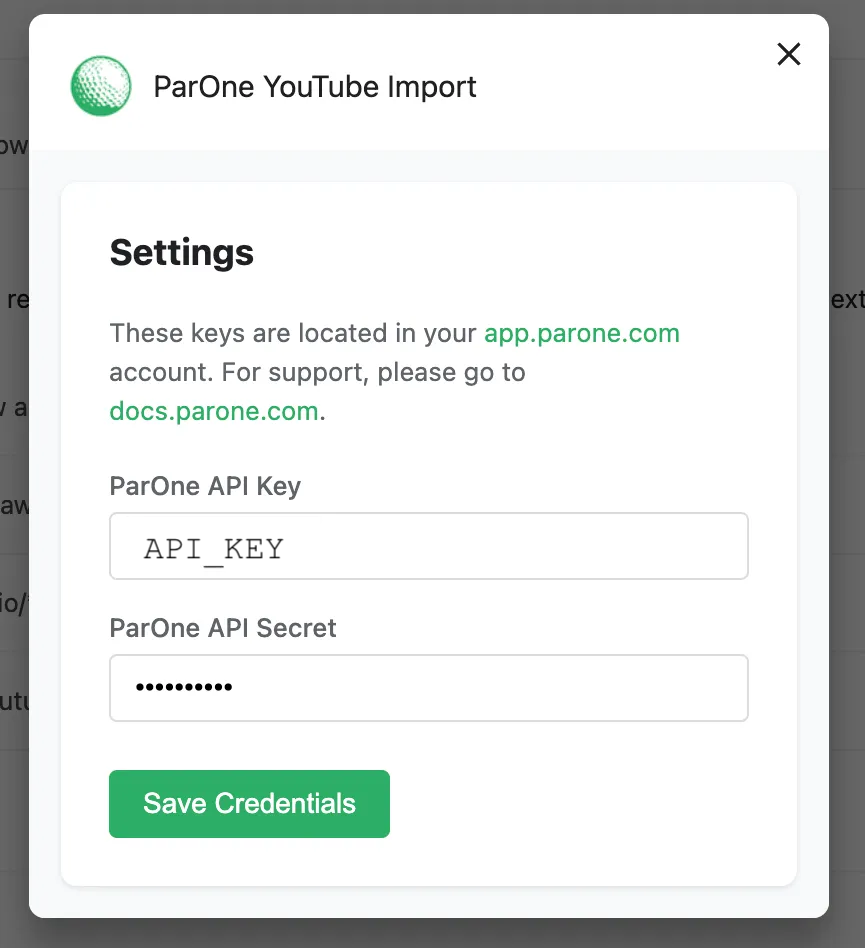
Now configure the extension with your ParOne API Key and Secret.
To find your API Key and Secret, go to https://app.parone.com, log in, then click on “Organization.”
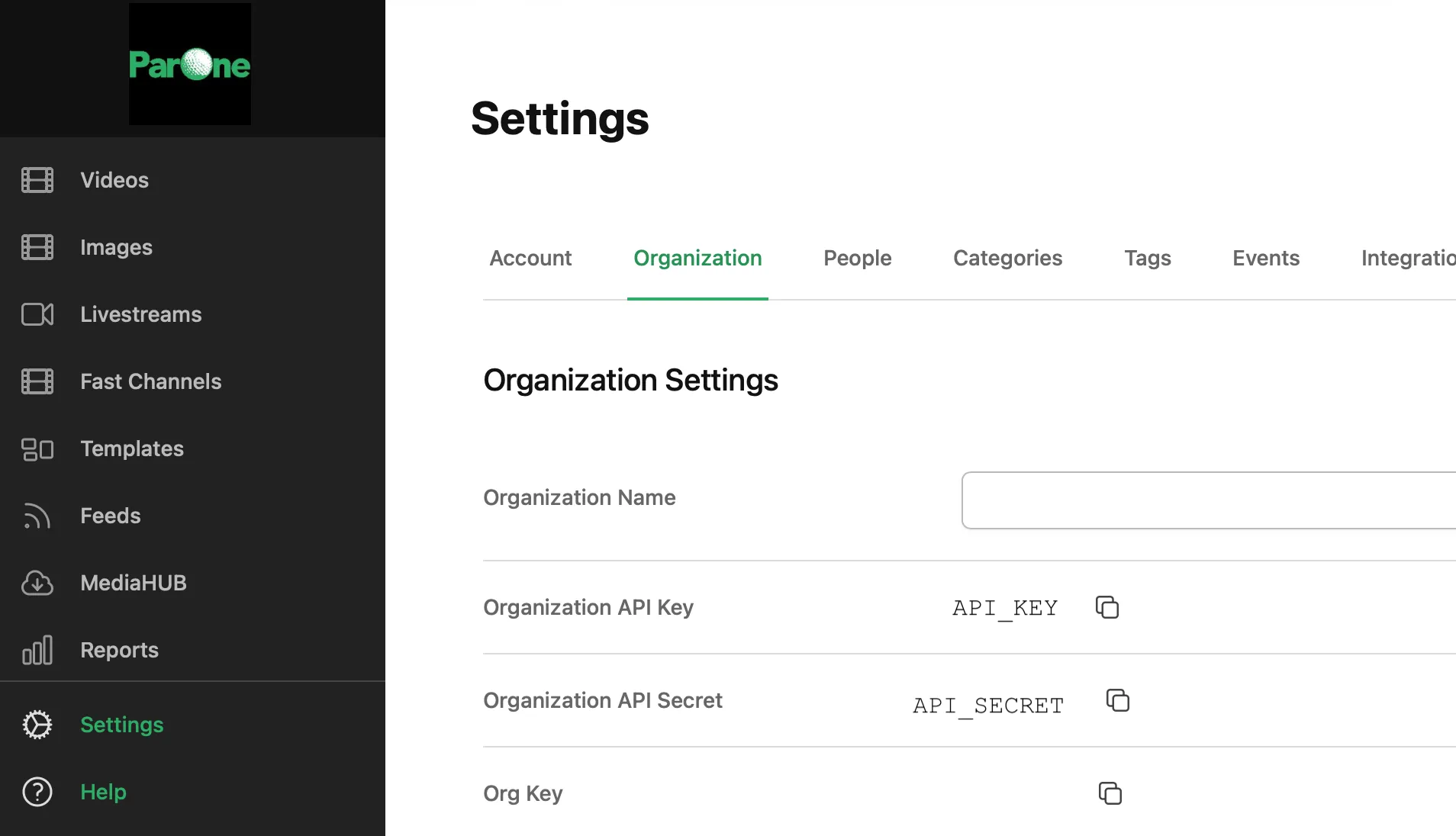
Copy and paste the API keys into Chrome, then click “Save Credentials.” Then click the “x”.
Next, enable file access:
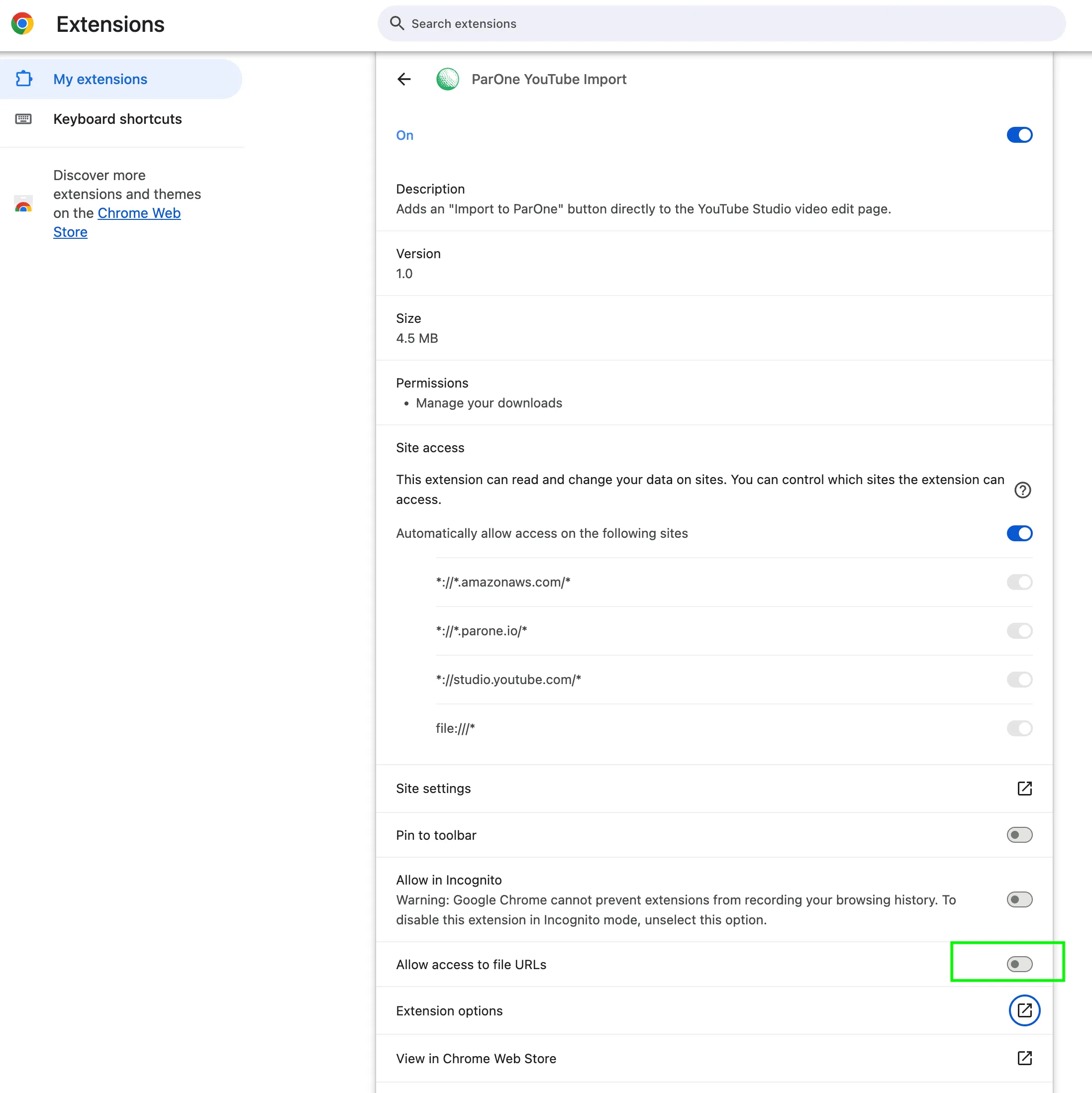
Now the extension is configured!
Importing a video
Section titled “Importing a video”To import a video, navigate to YouTube Studio (https://studio.youtube.com) and click “Content.”
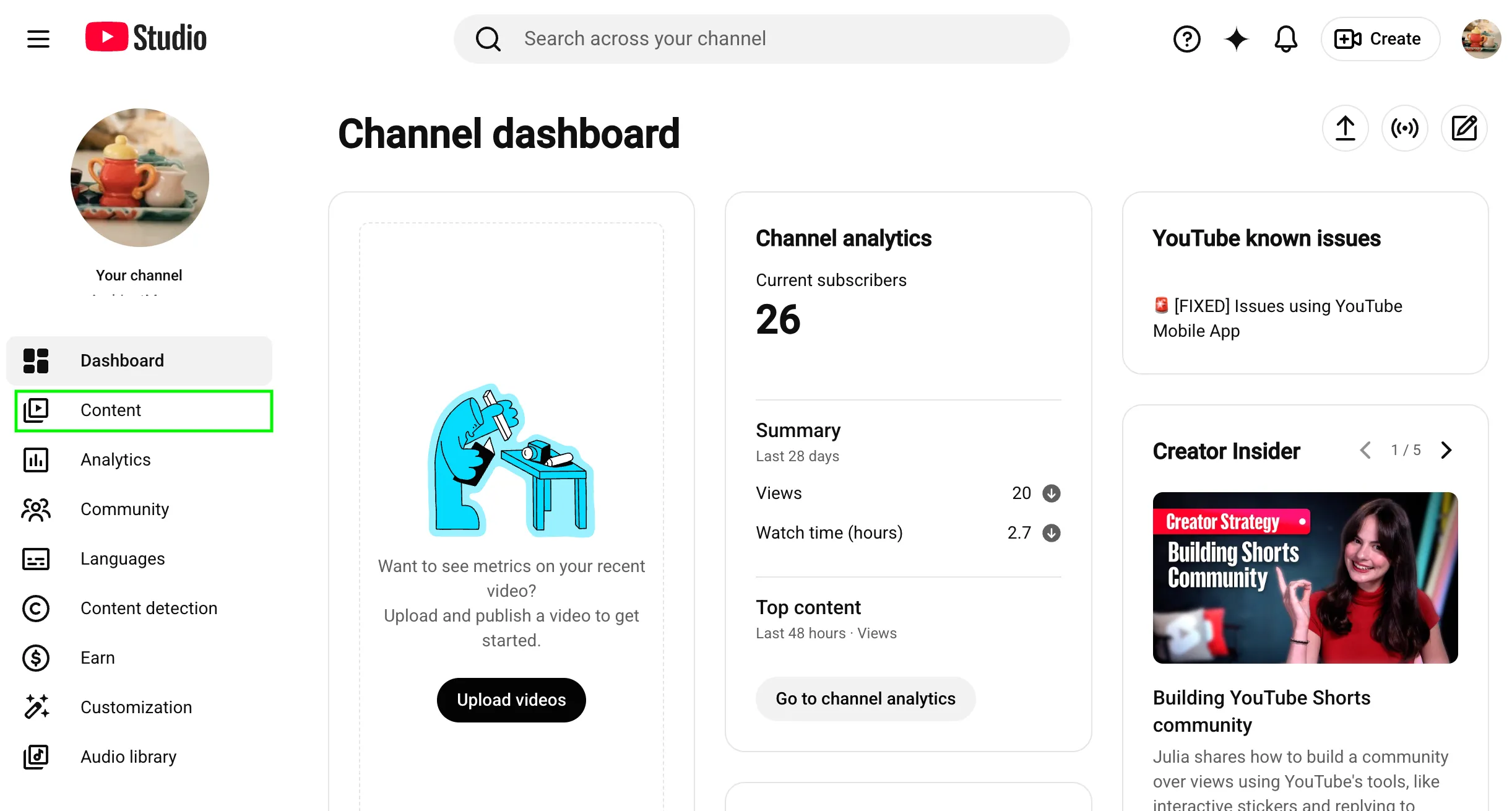
You should see your videos.
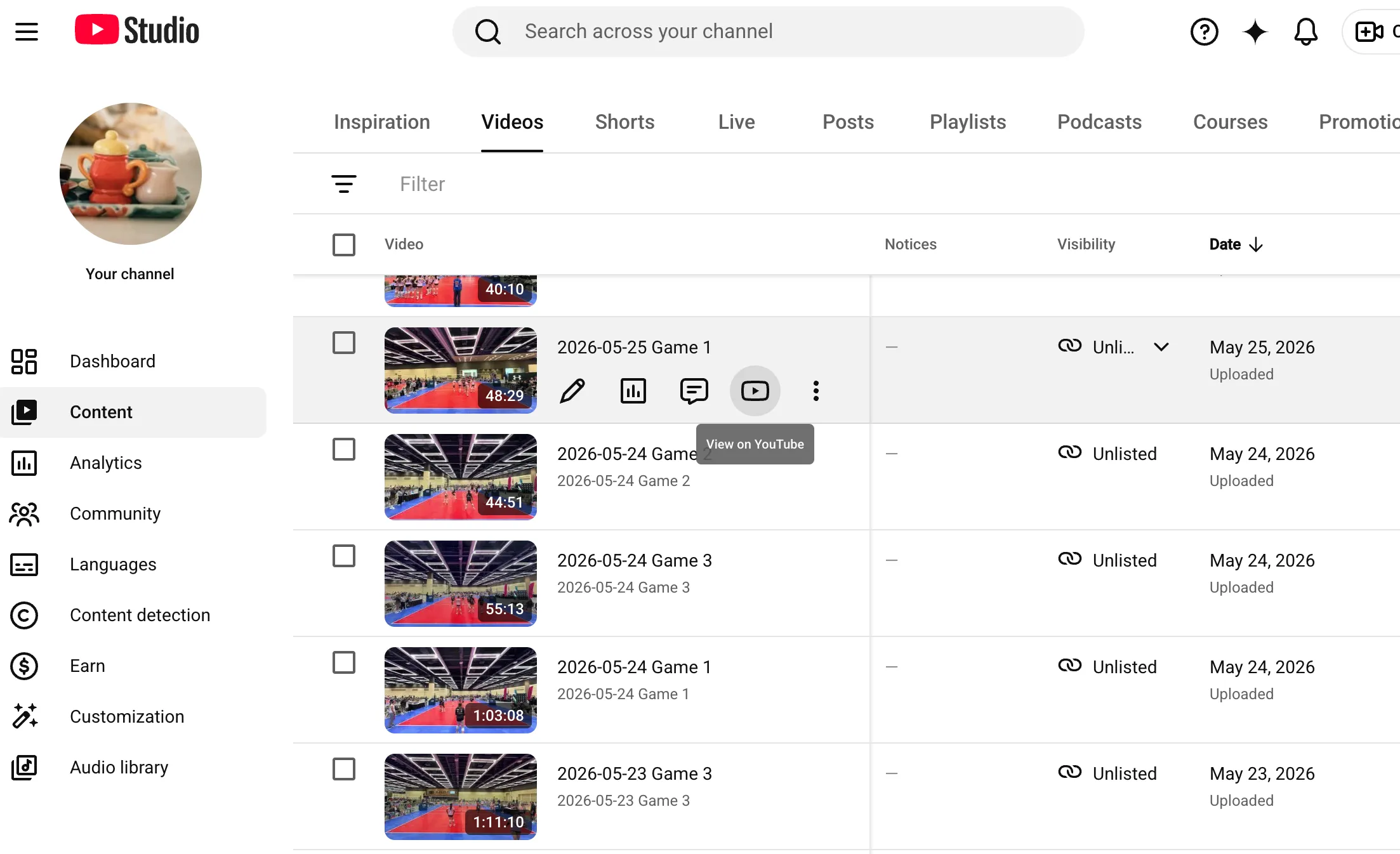
Click into the video you want to import and you’ll see an “Import Video to ParOne” button.
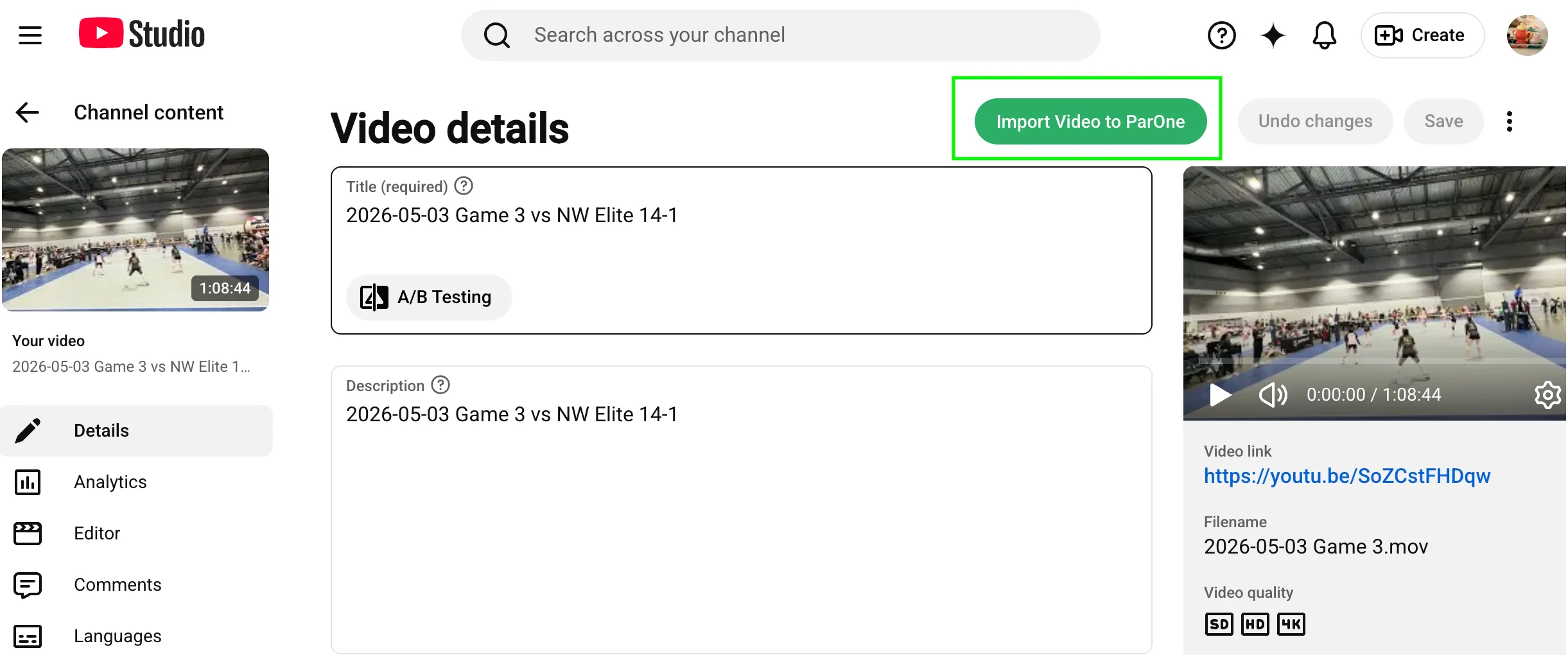
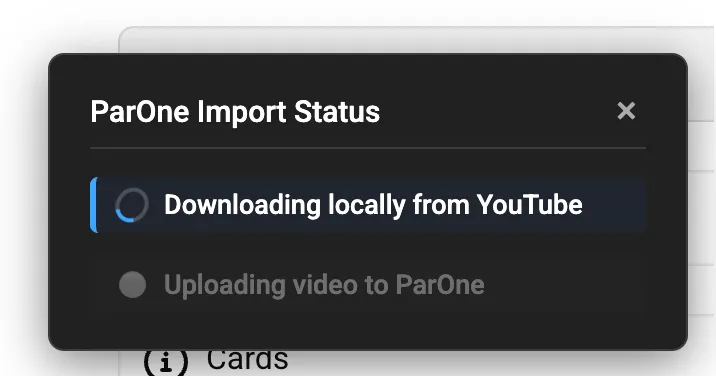
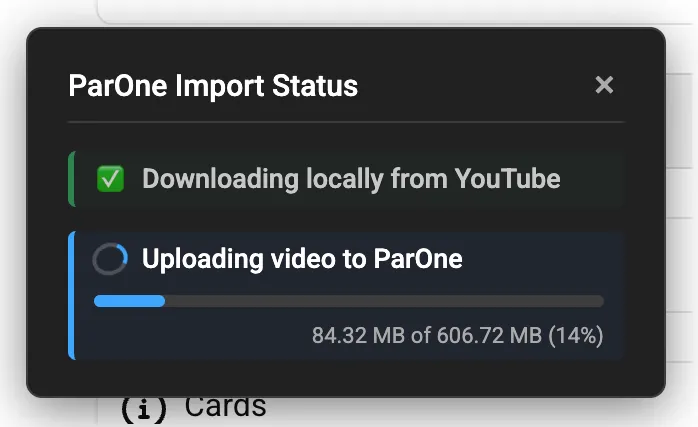
Click the “Import Video to ParOne” to start the import. The extension will download the video to your local PC, then upload it to ParOne. When the download starts, you’ll see this window:
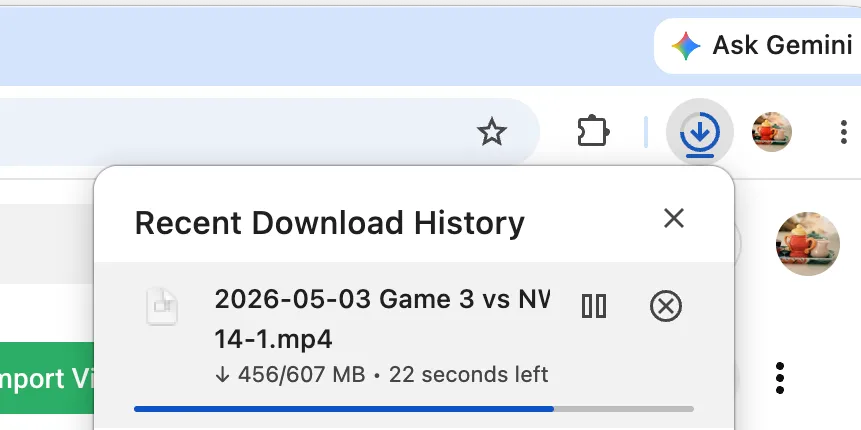
You can see the download status in the normal Chrome download widget
Once the download finishes the extension will start uploading, and the progress indicators will show you the upload progress:
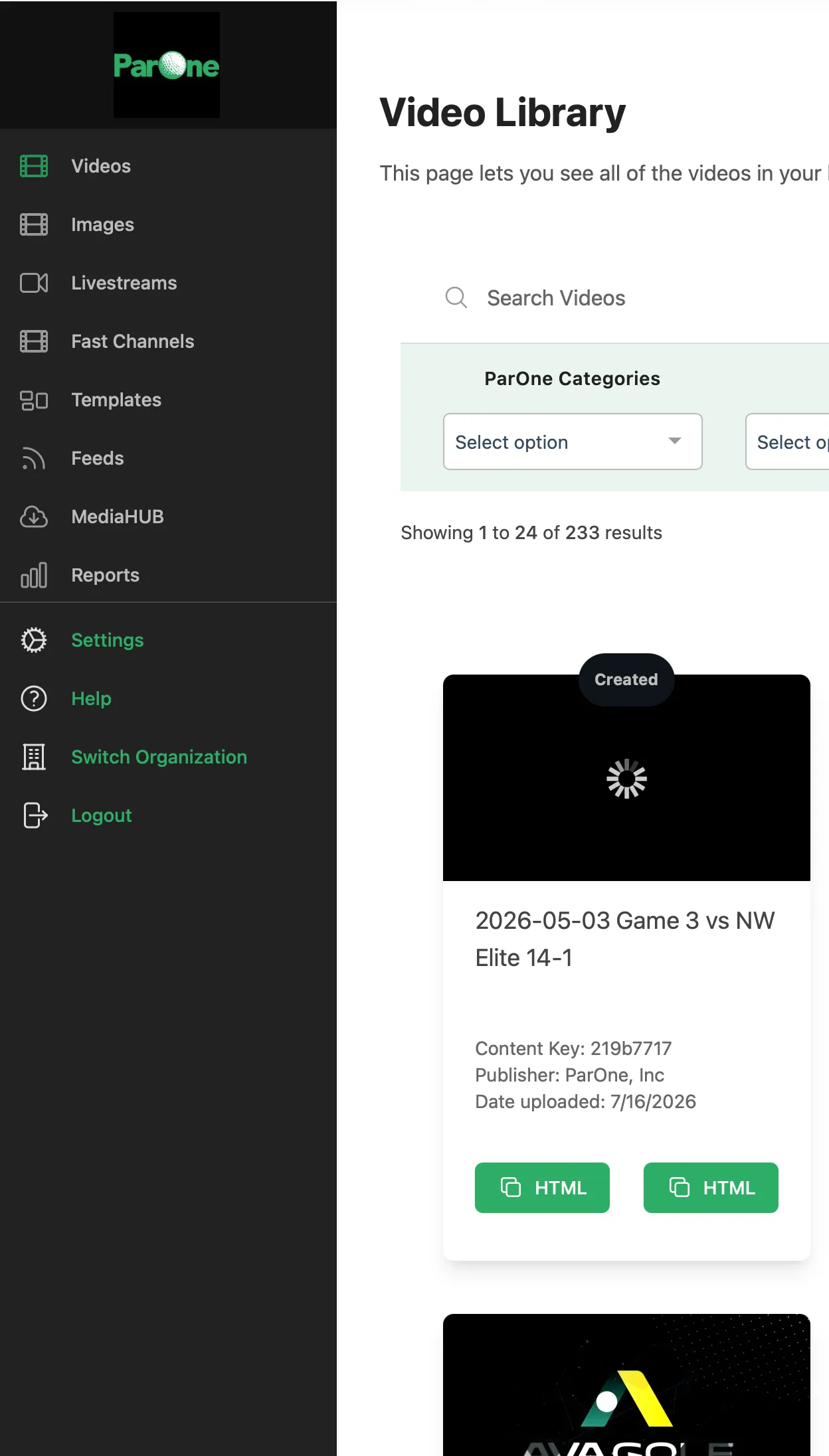
Once the upload is done you should see the video in app.parone.com: